Setting the Stage for Sim Success
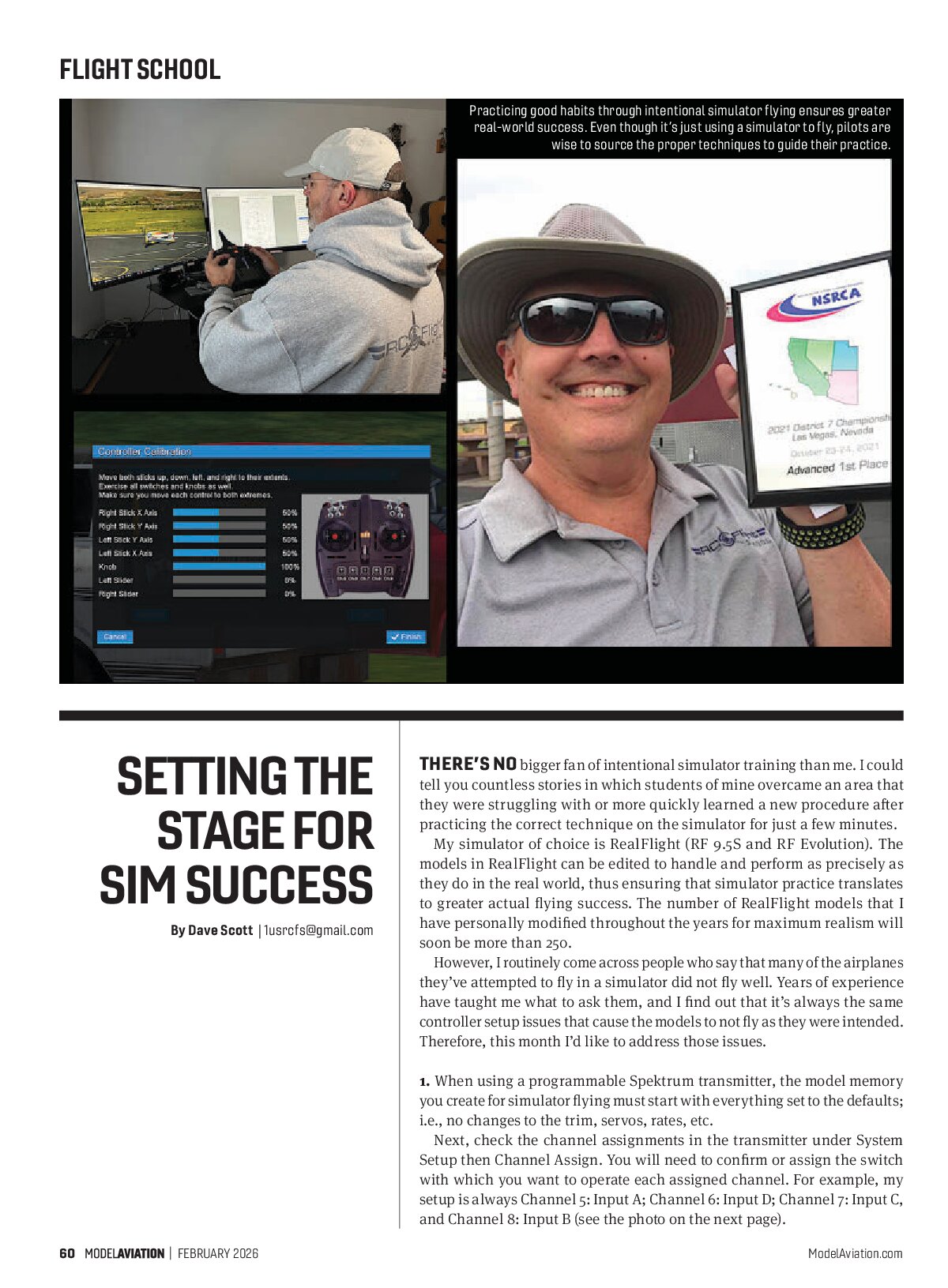
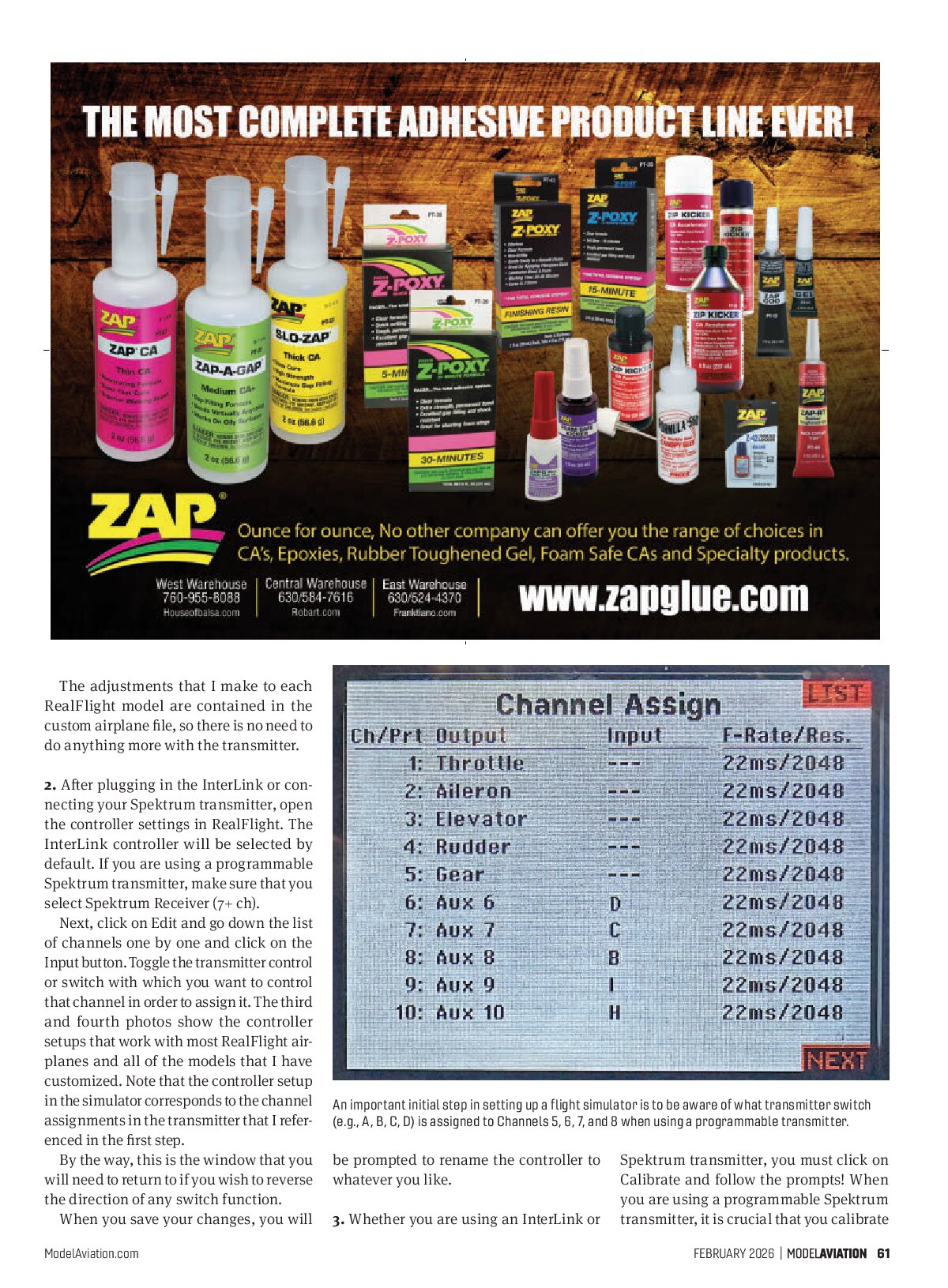
Practicing good habits through intentional simulator flying ensures greater real-world success. Even though it’s just using a simulator to fly, pilots are wise to source the proper techniques to guide their practice.

There’s no bigger fan of intentional simulator training than me. I could tell you countless stories in which students of mine overcame an area that they were struggling with or more quickly learned a new procedure after practicing the correct technique on the simulator for just a few minutes.
My simulator of choice is RealFlight (RF 9.5S and RF Evolution). The models in RealFlight can be edited to handle and perform as precisely as they do in the real world, thus ensuring that simulator practice translates to greater actual flying success. The number of RealFlight models that I have personally modified throughout the years for maximum realism will soon be more than 250.
However, I routinely come across people who say that many of the airplanes they’ve attempted to fly in a simulator did not fly well. Years of experience have taught me what to ask them, and I find out that it’s always the same controller setup issues that cause the models to not fly as they were intended. Therefore, this month I’d like to address those issues.

1. When using a programmable Spektrum transmitter, the model memory you create for simulator flying must start with everything set to the defaults; i.e., no changes to the trim, servos, rates, etc.
Next, check the channel assignments in the transmitter under System Setup then Channel Assign. You will need to confirm or assign the switch with which you want to operate each assigned channel. For example, my setup is always Channel 5: Input A; Channel 6: Input D; Channel 7: Input C, and Channel 8: Input B (see the photo on the next page).
The adjustments that I make to each RealFlight model are contained in the custom airplane file, so there is no need to do anything more with the transmitter.
2. After plugging in the InterLink or connecting your Spektrum transmitter, open the controller settings in RealFlight. The InterLink controller will be selected by default. If you are using a programmable Spektrum transmitter, make sure that you select Spektrum Receiver (7+ ch).
Next, click on Edit and go down the list of channels one by one and click on the Input button. Toggle the transmitter control or switch with which you want to control that channel in order to assign it. The third and fourth photos show the controller setups that work with most RealFlight airplanes and all of the models that I have customized. Note that the controller setup in the simulator corresponds to the channel assignments in the transmitter that I referenced in the first step.
By the way, this is the window that you will need to return to if you wish to reverse the direction of any switch function.
When you save your changes, you will be prompted to rename the controller to whatever you like.

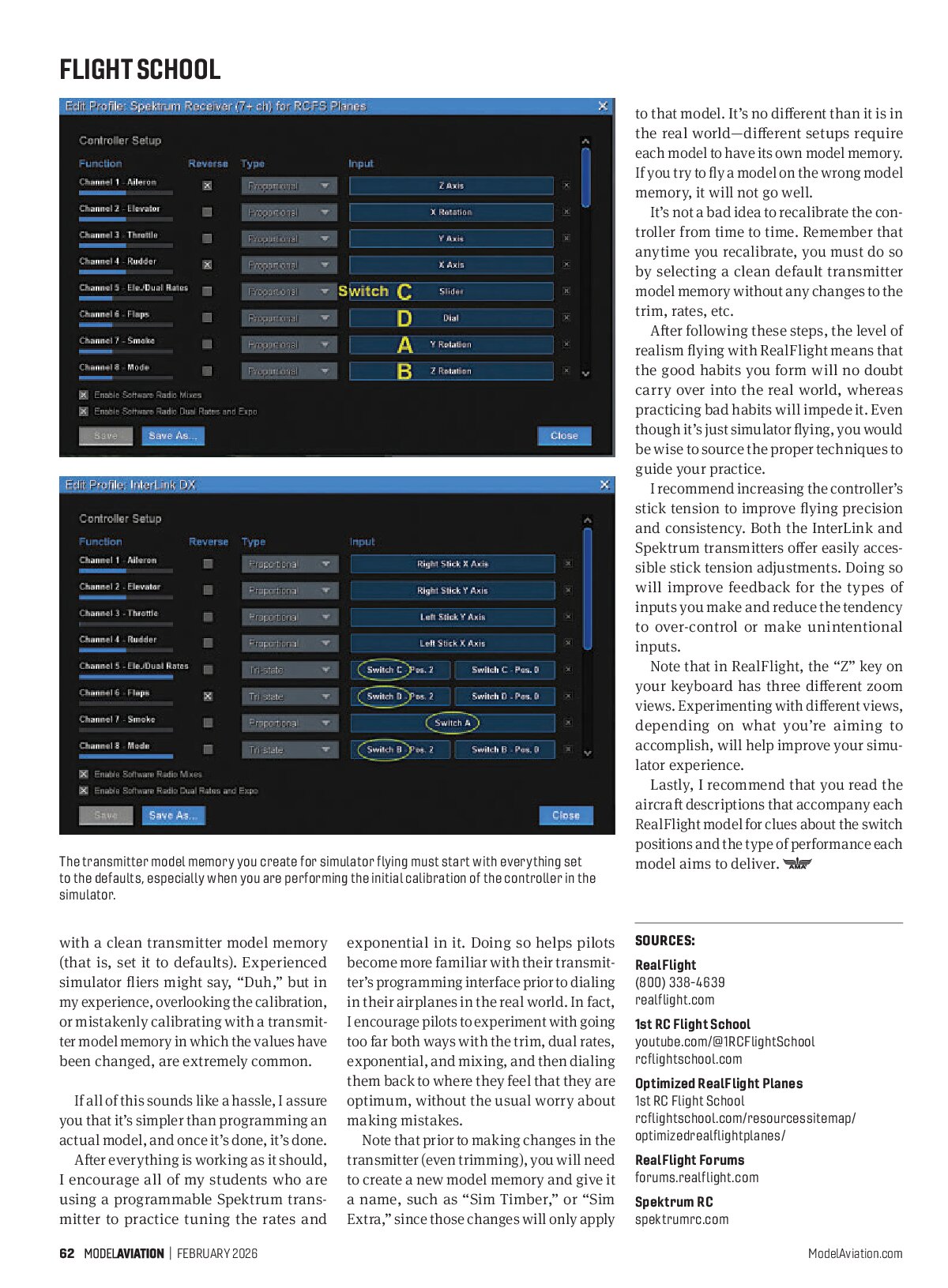
3. Whether you are using an InterLink or Spektrum transmitter, you must click on Calibrate and follow the prompts! When you are using a programmable Spektrum transmitter, it is crucial that you calibrate with a clean transmitter model memory (that is, set it to defaults). Experienced simulator fliers might say, “Duh,” but in my experience, overlooking the calibration, or mistakenly calibrating with a transmitter model memory in which the values have been changed, are extremely common.
If all of this sounds like a hassle, I assure you that it’s simpler than programming an actual model, and once it’s done, it’s done.
After everything is working as it should, I encourage all of my students who are using a programmable Spektrum transmitter to practice tuning the rates and exponential in it. Doing so helps pilots become more familiar with their transmitter’s programming interface prior to dialing in their airplanes in the real world. In fact, I encourage pilots to experiment with going too far both ways with the trim, dual rates, exponential, and mixing, and then dialing them back to where they feel that they are optimum, without the usual worry about making mistakes.
Note that prior to making changes in the transmitter (even trimming), you will need to create a new model memory and give it a name, such as “Sim Timber,” or “Sim Extra,” since those changes will only apply to that model. It’s no different than it is in the real world—different setups require each model to have its own model memory. If you try to fly a model on the wrong model memory, it will not go well.
It’s not a bad idea to recalibrate the controller from time to time. Remember that anytime you recalibrate, you must do so by selecting a clean default transmitter model memory without any changes to the trim, rates, etc.
After following these steps, the level of realism flying with RealFlight means that the good habits you form will no doubt carry over into the real world, whereas practicing bad habits will impede it. Even though it’s just simulator flying, you would be wise to source the proper techniques to guide your practice.
I recommend increasing the controller’s stick tension to improve flying precision and consistency. Both the InterLink and Spektrum transmitters offer easily accessible stick tension adjustments. Doing so will improve feedback for the types of inputs you make and reduce the tendency to over-control or make unintentional inputs.
Note that in RealFlight, the “Z” key on your keyboard has three different zoom views. Experimenting with different views, depending on what you’re aiming to accomplish, will help improve your simulator experience.
Lastly, I recommend that you read the aircraft descriptions that accompany each RealFlight model for clues about the switch positions and the type of performance each model aims to deliver.
SOURCES
- RealFlight
(800) 338-4639 - realflight.com
- 1st RC Flight School
youtube.com/@1RCFlightSchool - rcflightschool.com
- Optimized RealFlight Planes
1st RC Flight School - rcflightschool.com/resourcessitemap/optimizedrealflightplanes/
- RealFlight Forums
- forums.realflight.com
- Spektrum RC
- spektrumrc.com